How TradingView Integration Works
This guide explains the core components at the heart of our TradingView integration solution.
The TradingView Adapter
The TradingView integration is made possible by a special adapter that is responsible for ensuring steady and streamlined communications between TradingView and the cTrader backend.
Developed by Spotware and tested in cooperation with TradingView, this adapter requires no fundamental architecture adjustments from brokers. Spotware handles the entire deployment process faster than other platform providers, ensuring a smooth and efficient integration.
When a user first links a trading account to TradingView, the broker's client area must request the TradingView adapter to generate a special token required for subsequent communications between the TradingView client and the cTrader backend. The API call for token generation is described below.
This token is later appended to all requests made by the TradingView client to the cTrader backend. These requests are sent whenever a user performs a trading operation or any other operation that can only be completed with participation from the cTrader backend.
The Token Generation Request
The URL of the token generation request is relative to the HOST:PORT of the deployed TradingView adapter.
| HTTP Method | URL |
|---|---|
POST | /generate/token |
Generates and returns a token necessary for communications between the TradingView client and the cTrader backend. Expires in 30 days.
The 30-day expiry applies to the token issued by the cTrader TradingView adapter. TradingView itself requires a shorter token lifetime, and this requirement is subject to change. Always use the current value specified in TradingView's authentication requirements.
Parameters
No parameters.
Request Body
| Key | Required? | Data Type | Description |
|---|---|---|---|
userId | Yes | integer | The unique identifier of the cTID ('user') attempting to trade via TradingView. |
brokerNames | Yes | array<string> | An array containing the names of brokers with which the user has cTrader accounts. If your brokerage has several jurisdictions and/or white labels (each of which has its own unique brokerName), you can specify them here so that a user is only able to link account(s) registered under these jurisdictions/white labels. |
ctidTraderAccountIds | No | array<integer> | An array containing the identifiers of the trading accounts linked to the specified userId.Specify only the brokerNames array if you want TradingView to receive access to all accounts linked to a certain userId and registered with one or more jurisdiction/white label. If you specify any account numbers in the ctidTraderAccountId list, the TradingView clients will only receive access to these accounts. |
isVerified | No | bool | The flag that determines whether the user is verified. Only verified users can leave ratings for brokers inside the TradingView client. |
The structure of the request body allows for establishing granular solutions that grant the TradingView client access to certain accounts registered under specific jurisdictions/white labels.
Using any suitable solution, you can detect cases in which traders have specifically requested the creation of a 'cTrader/TradingView' account in your client area and provide the TradingView client with access only to these accounts.
Note that, owing to the characteristics of the TradingView backend, all accounts linked to TradingView must receive quotes from a single pre-defined price stream (you can decide what this price stream is). This can be managed at the group level in the cTrader backend
If you want to allow users to link both demo and live accounts to TradingView, you must ensure that the accounts of these two types also receive quotes the same price stream despite existing in different environments.
Output
| Key | Data Type | Description |
|---|---|---|
s | string | The response status. The value of this key will always be ok for successful requests and error for unsuccessful ones. |
d | string | The token generated by the TradingView adapter. As shown below, your client area will need to pass this token to the TradingView client after its generation. |
errmsg | string | The description of the error that has occured when making the request. This key is only returned for unsuccessful requests. |
Request Example
curl -X POST 'http://HOST:PORT/generate/token' -H 'Content-Type: application/json' -H 'Accept: application/json' -H 'Authorization: Bearer wrYl_zl_8dLXaZul7GcfpqmDqr7jEnli7or_zct_ETxJnOa4ddaEzftNXbuvNSB-CkZss7TdsTVHRHfqBMq_HqQUxBGCTgWj8loHzi27gJTO1xTqTd9SkJGYP8rYlNQn' -d '{"userId":14601,"brokerNames":["BESTBROKER"],"ctidTraderAccountIds":[137780091, 137792301], "isVerified": true}'
Note that the bearer token in the Authorization header is provided by Spotware following the deployment of the TradingView adapter.
Response Example
{
  "s": "ok",
  "d": "aSDf09SFd_asdXC01009mbH_BjMql4980154_asdlDQDq"
}
The Logout Endpoint
The /logout endpoint notifies the TradingView adapter that a user session should be terminated. It invalidates the access token that was previously generated via /generate/token and clears all cached data associated with it.
This endpoint is called in two scenarios:
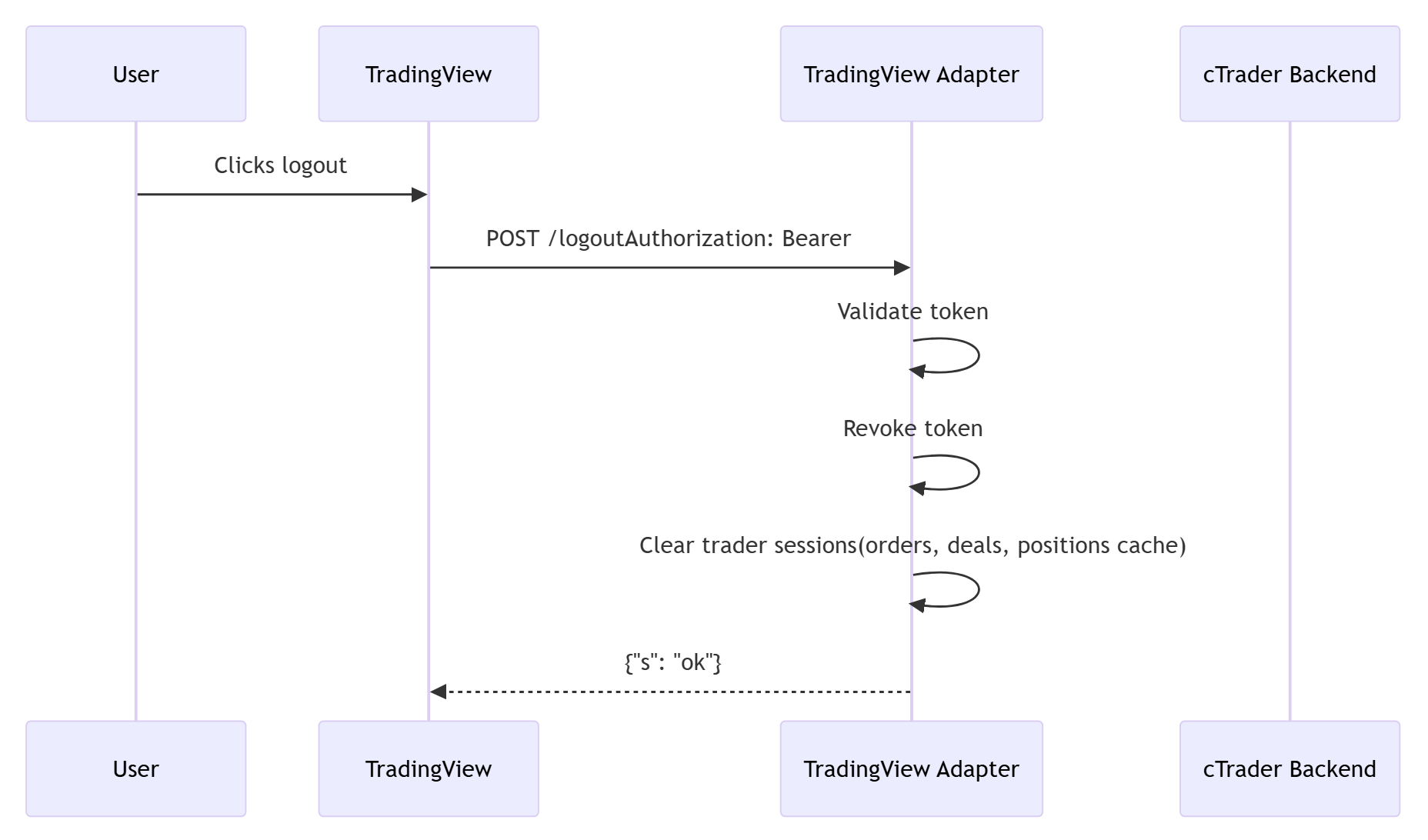
- By TradingView, when a user clicks the logout button in the Trading Panel.
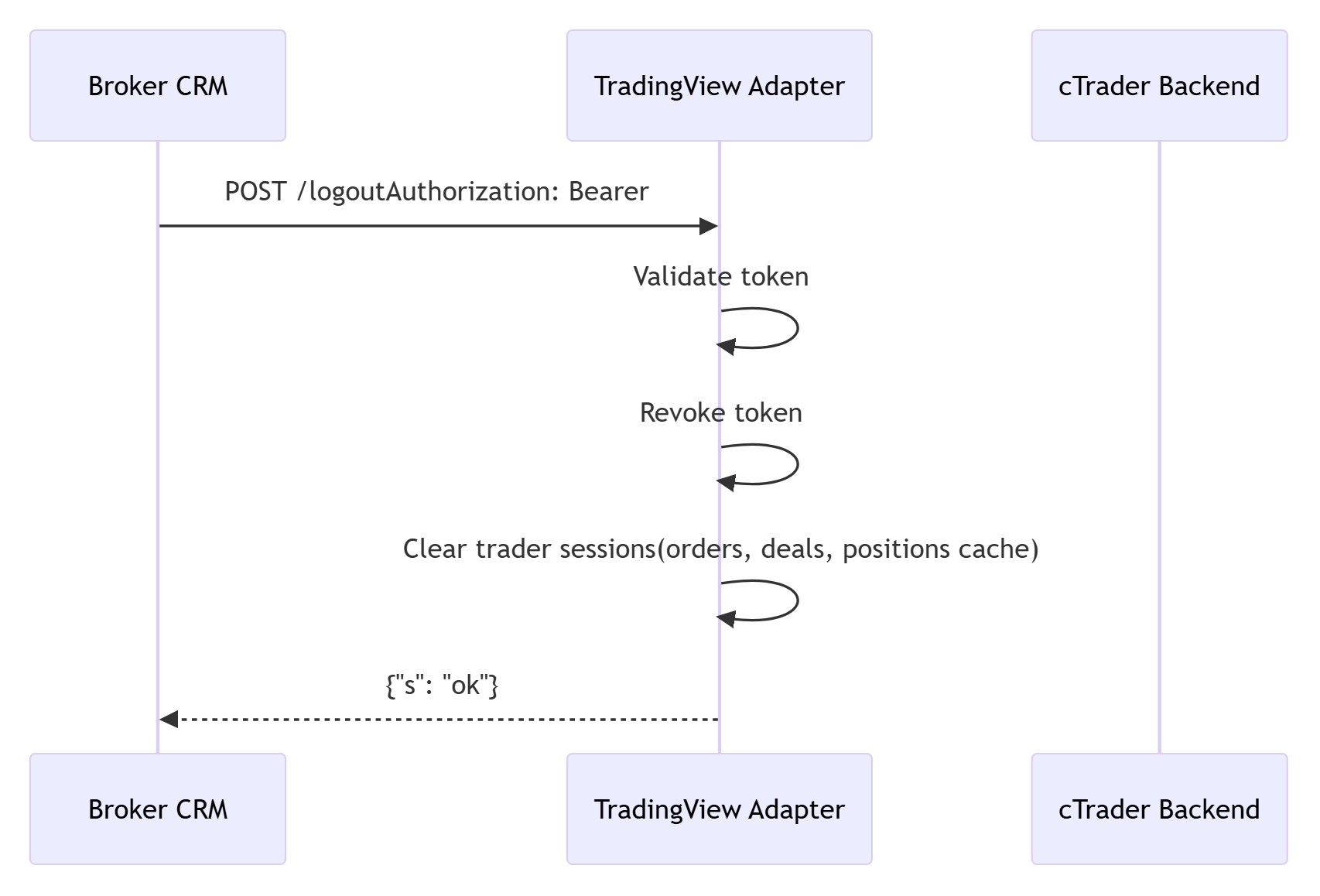
- By the broker's CRM/backend, when the broker needs to forcefully invalidate a TradingView token that was previously generated via
/generate/token. For example, when a user changes their password, when their account is suspended, or when the broker needs to revoke access for security reasons.
In both cases, the request is identical. The caller sends the access token in the Authorization header, and the adapter revokes it.
| HTTP Method | URL |
|---|---|
POST | /logout |
Parameters
No parameters.
Request Body
No request body.
Headers
| Header | Required? | Description |
|---|---|---|
Authorization | Yes | Bearer <access_token> where <access_token> is the token issued by the /generate/token endpoint. |
Output
| Key | Data Type | Description |
|---|---|---|
s | string | The response status. The value of this key will always be ok for successful requests and error for unsuccessful ones. |
errmsg | string | The description of the error that has occurred when making the request. This key is only returned for unsuccessful requests. |
Request Example
curl -X POST 'http://HOST:PORT/logout' -H 'Accept: application/json' -H 'Authorization: Bearer <access_token>'
Response Example
{
  "s": "ok"
}
Status Code
200
Unsuccessful Response Example
{
  "s": "error",
  "errmsg": "An error occurred."
}
Status Code
200
Logout Processing
When the TradingView adapter receives a logout request, it performs the following steps:
- Extracts and validates the bearer token from the
Authorizationheader. - Decrypts the token to retrieve the authorisation data.
- Verifies that the token has not expired.
- Adds the token to the revoked tokens cache so that it cannot be reused for subsequent requests. The revocation entry is stored for the remaining lifetime of the token.
- Removes all trader sessions associated with the token and clears cached data (order history, deals, and positions) for each trader.
- Returns a success response (
{"s": "ok"}).
If the token is missing, invalid, or expired, the adapter returns an error response.
Sequence Diagrams
TradingView-initiated logout:
Broker CRM-initiated logout:
After logout, the user's credentials are required during the next login attempt.
The broker's CRM does not need any additional credentials beyond the access token itself, as the same Bearer <token> that was returned by /generate/token is used in the Authorization header.
The TradingView Integration Flow
The figure below summarizes the entire TradingView integration flow. Note that there exist three possible cases in which a user wants to trade via the TradingView client.
- Case A. The user is not registered with their chosen broker.
- Case B. The user is registered with their chosen broker but they do not yet have a cTrader account.
- Case C. The user is registered with their chosen broker and they already have one or more cTrader accounts with this broker.
The figure accounts for all three cases.
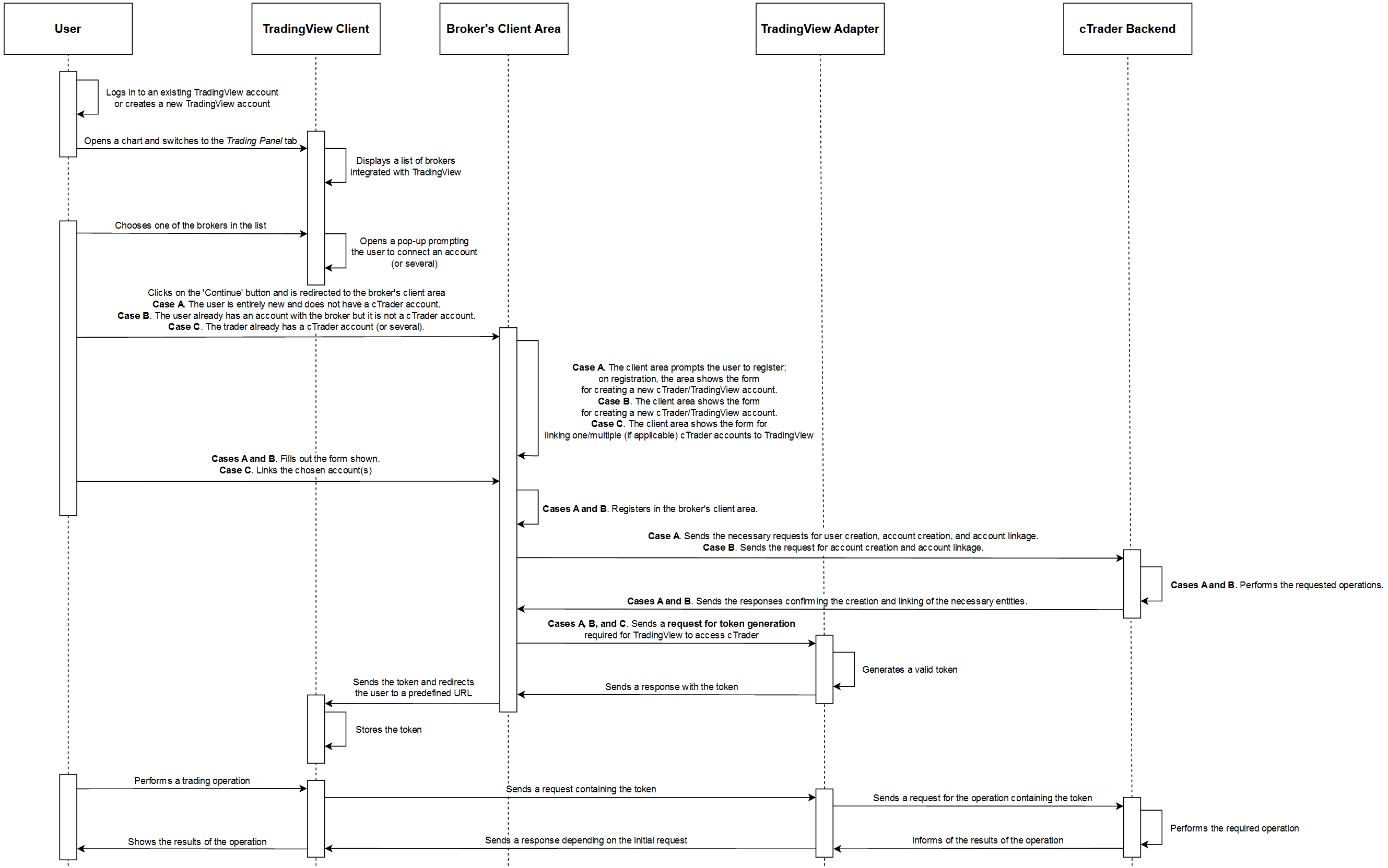
For steps that involve actions initiated by the TradingView client (while being executed by your backend services), brokers or CRM providers must implement the required TradingView authentication and authorisation logic. Refer to TradingView's Broker Integration Manual for the complete broker/CRM provider to-do list, including the OAuth 2.0 code flow.
The TradingView integration flow passes through the following stages.
- The user authorizes in TradingView either using their existing account or after creating a new account.
- The user opens any chart and switches to the Trading Panel tab.
- The TradingView client displays a list of brokers with which it is integrated.
- In this list, the user selects one specific broker.
- The TradingView client opens a pop-up window prompting the user to connect an account (or several).
- The user confirms their intention; afterward, the user is redirected to the broker's client area.
- The broker's client area shows a suitable form depending on the case as described below. Case A. The client area shows the registration form; after registration, it shows the form for creating a new TradingView/cTrader account. Case B. The client area shows the form for creating a new TradingView/cTrader account. Case C. The client area shows the form for linking one/multiple (if applicable) cTrader accounts to TradingView.
- The user performs an action depending on the case as described below. Cases A and B. The user fills out the forms shown by the broker's client area. Case C. The user agress to link one or more cTrader accounts to TradingView.
- Cases A and B only. The broker's client area registers the new user.
- Cases A and B only. The broker's client area sends a request to the cTrader backend depending on the case. Case A. The broker's client area sends the requests for user creation, account creation, and account linkage. Case B. The broker's client area sends the requests for account creation and account linkage.
- Cases A and B only. The cTrader backend performs the requested operations.
- Cases A and B only. The cTrader backend sends the responses to the broker's client area confirming the creation and linkage of the necessary entities.
- All cases. The broker's client area sends a request for token generation (see above) so that the TradingView client can access the cTrader.
- The TradingView adapter generates a valid token and sends a response with it to the broker's client area.
- The broker's client area sends the token to the TradingView client and redirects the user to a predefined URL set up by TradingView.
- The TradingView Client stores the token.
- Whenever a user attempts to perform an operation that requires participation from the cTrader backend, the TradingView client sends a corresponding response containing the token to the TradingView adapter.
- The TradingView adapter sends a request containing the token to the cTrader backend.
- The cTrader backend performs the requested operation and sends a response with its results to the TradingView adapter.
- The TradingView adapter informs the TradingView client of the results of the operation.
- The TradingView client shows the results of the operation to the user.