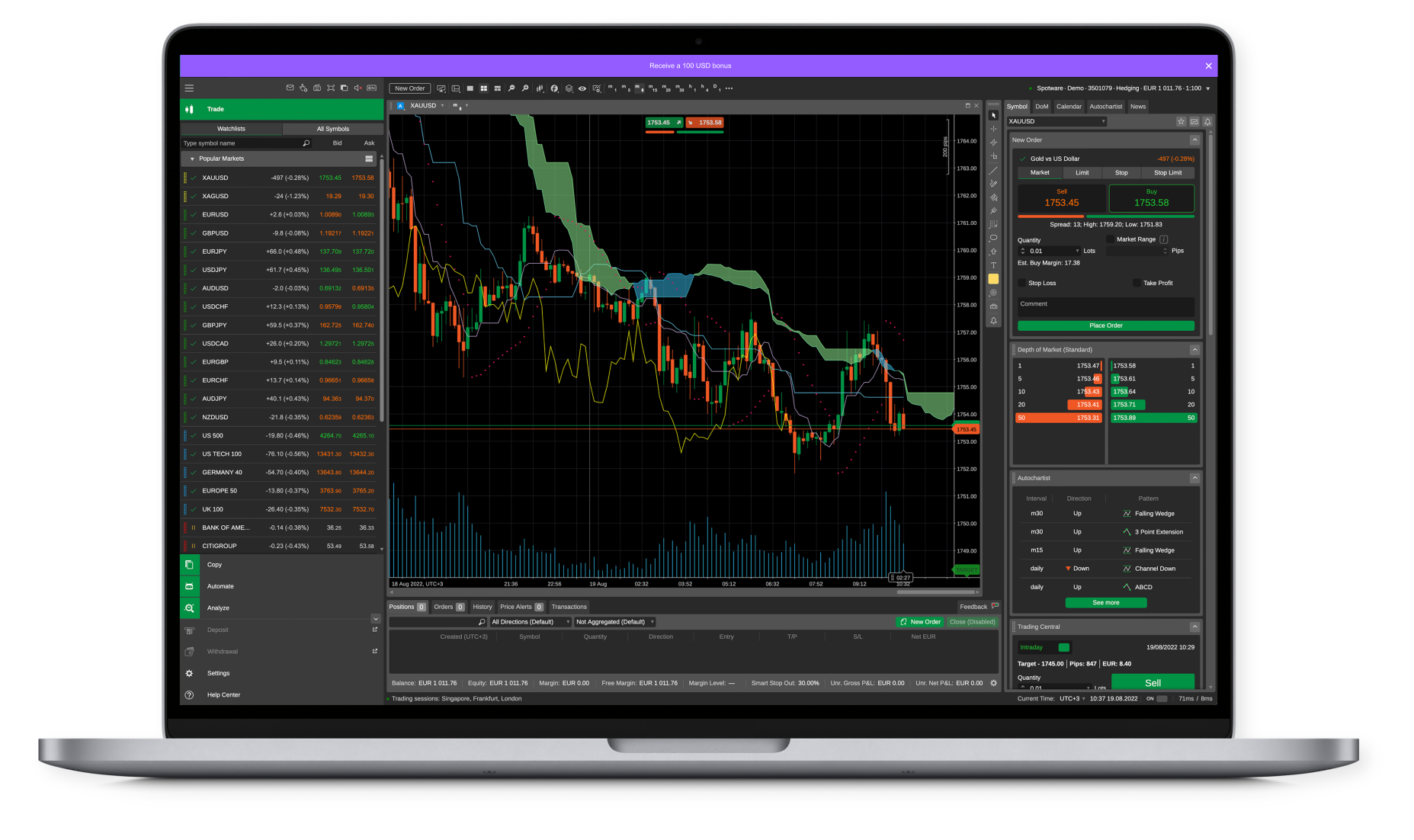
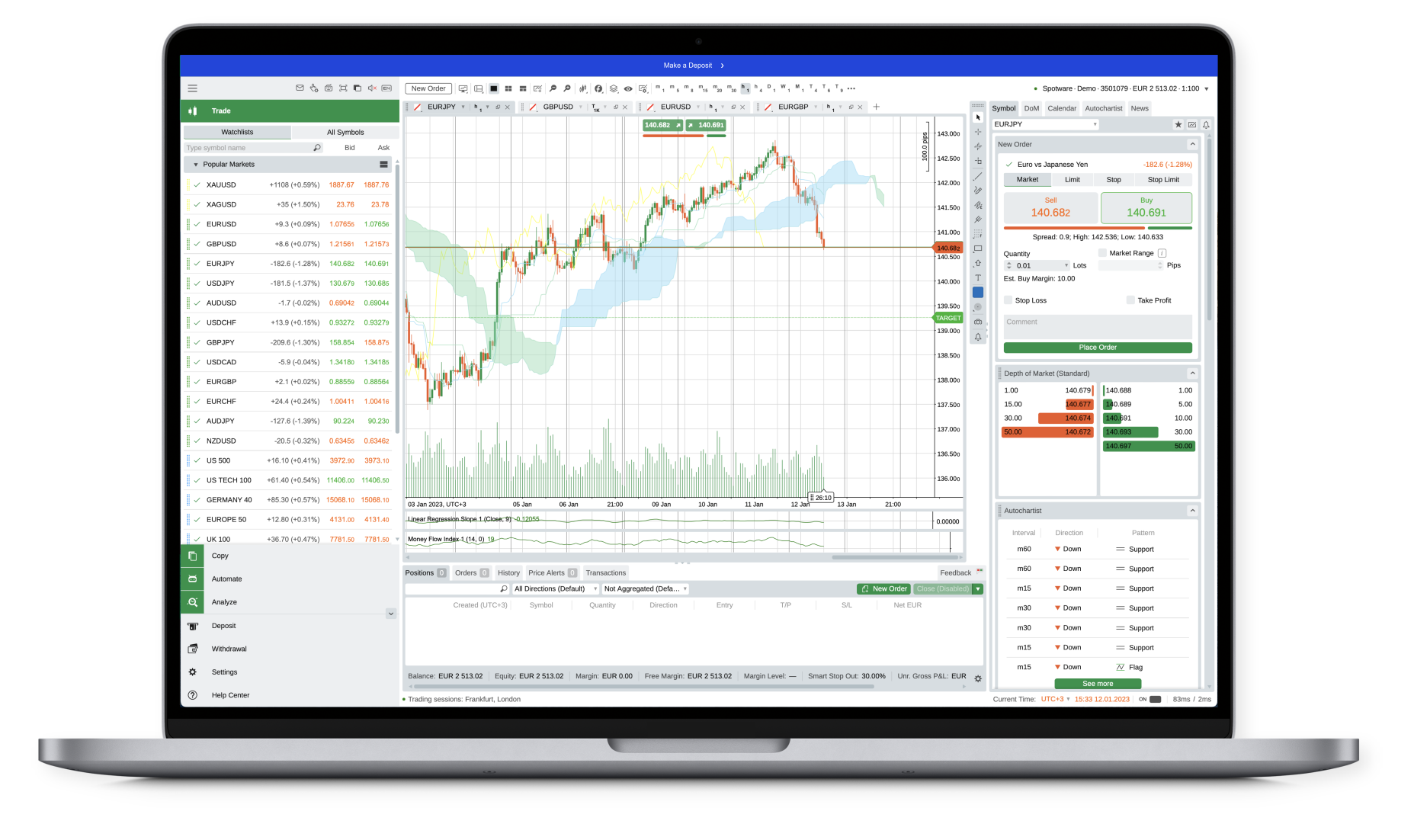
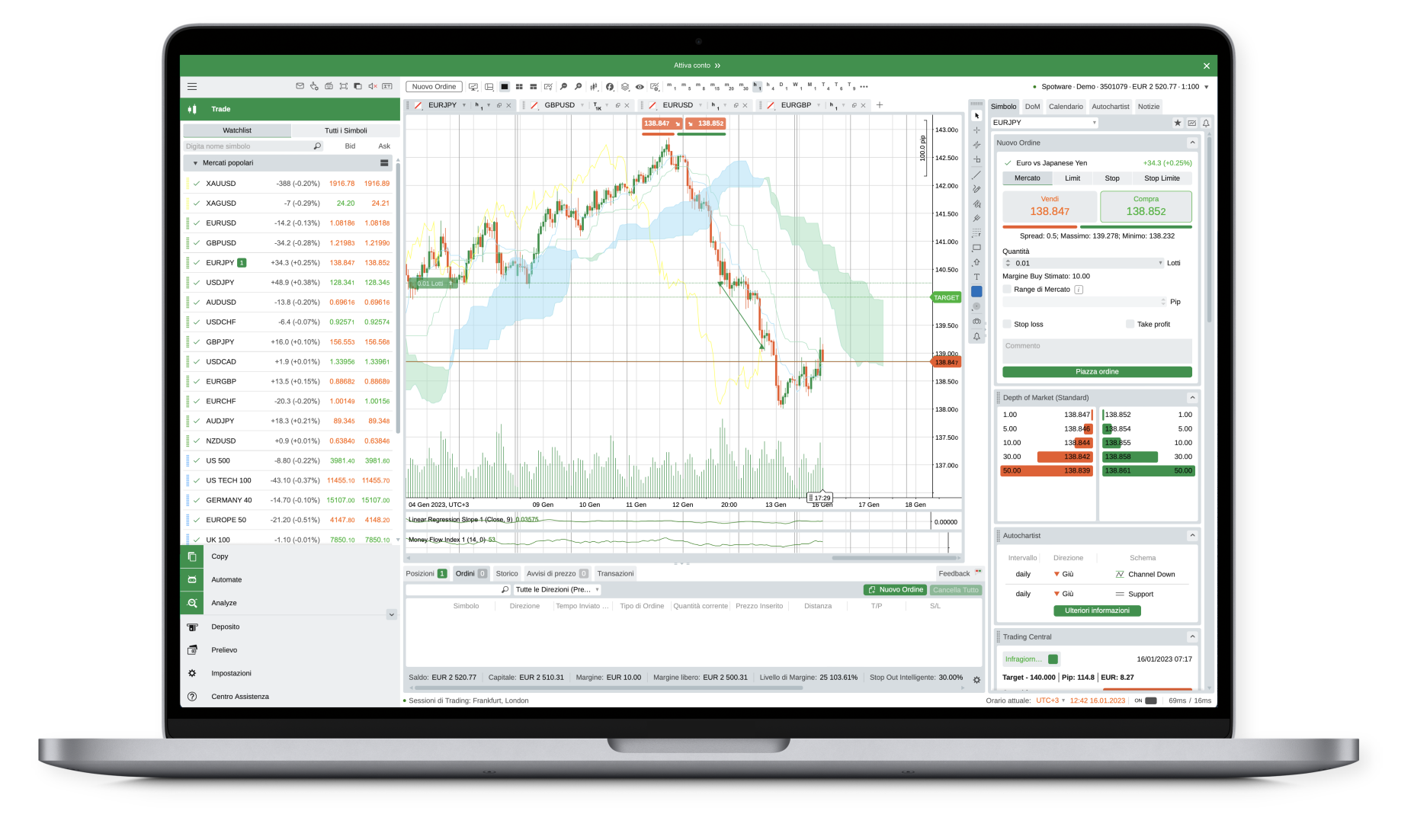
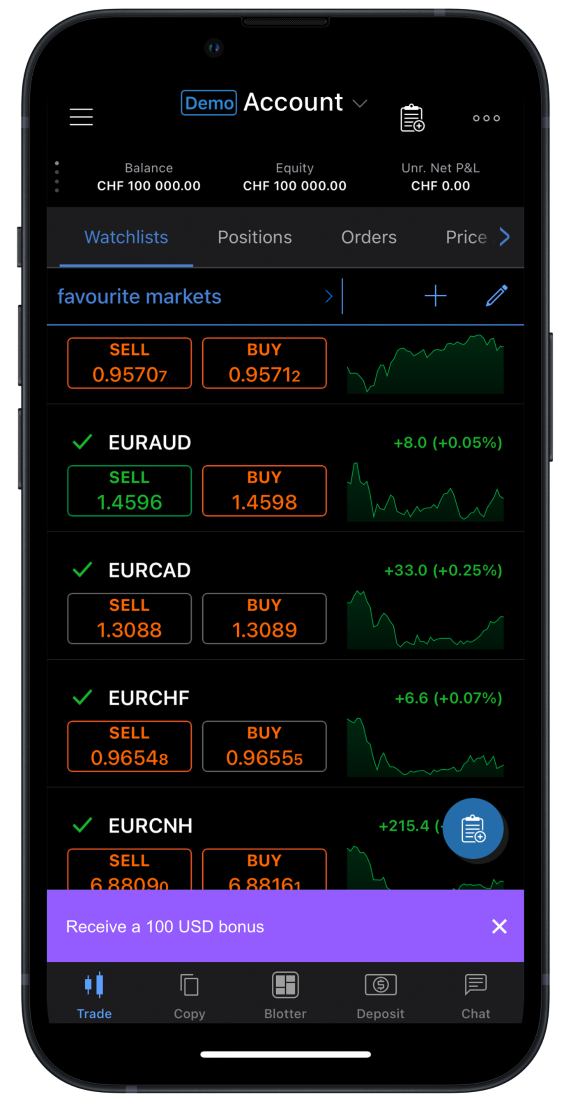
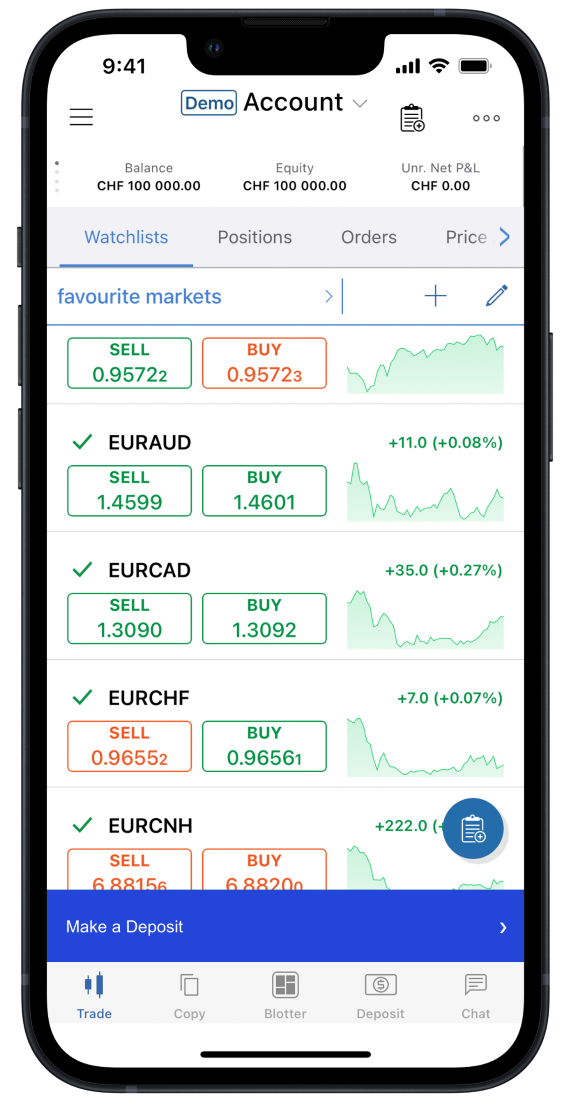
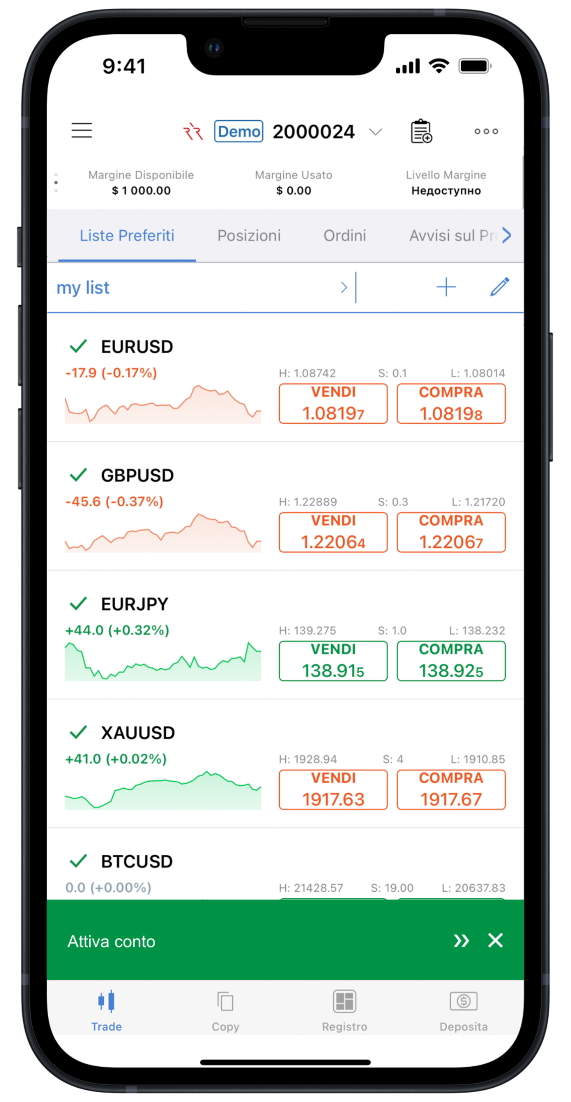
In-App Ribbons

InApp Controls / Ribbons enables brokers to display targeted promotional and informational elements directly within the cTrader interface. This module provides a powerful marketing and communication channel that allows brokers to engage users with personalized messages, promotions, and calls-to-action.

Overview

The InApp Controls / Ribbons module enables:

  • Targeted promotional ribbons within cTrader interface
  • Personalised messaging based on user segments
  • Interactive controls for user engagement
  • Real-time content updates and scheduling
  • Comprehensive analytics and performance tracking

Prerequisites

Before implementing InApp Controls / Ribbons, ensure completion of:

Note: InApp Controls / Ribbons requires SSO User creation and authorisation as it needs access to the broker's user database for targeted messaging.

Architecture

Control Types

  1. Promotional Ribbons: Marketing messages and promotional offers
  2. Informational Banners: Important announcements and updates
  3. Interactive Controls: Clickable elements with specific actions
  4. Targeted Messages: Personalized content based on user behavior

Targeting Capabilities

  • User Segments: Target based on account type, balance, trading volume
  • Behavioural targeting: Target based on trading patterns and activity
  • Geographic Targeting: Target based on user location
  • Temporal Targeting: Schedule messages for specific times

Implementation Flow

Control Creation and Management

Stage 1: Control Definition

  1. Broker defines control content

    • Content: Message text, images, call-to-action buttons
    • Targeting: Define target audience criteria
    • Scheduling: Set display schedule and duration
    • Actions: Define actions for user interactions
  2. Control configuration

    • Visual Design: Colors, fonts, layout specifications
    • Positioning: Location within cTrader interface
    • Priority: Display priority when multiple controls active
    • Frequency: Display frequency and capping rules

Stage 2: Control Distribution

  1. Control registration with cTrader

    • API Call: Register control definitions with cTrader backend
    • Targeting Rules: Upload targeting criteria and user segments
    • Content Assets: Upload images and other media assets
    • Schedule Information: Provide display schedules
  2. cTrader backend processes controls

    • Validation: Validate control configuration and content
    • Asset Processing: Process and optimize media assets
    • Targeting Index: Index targeting rules for efficient matching
    • Cache: Cache control data for performance

Stage 3: User-Specific Control Selection

  1. User session initialization

    • User Identification: Identify user via Full SSO authentication
    • Profile Loading: Load user profile and trading data
    • Segment Evaluation: Evaluate user against targeting criteria
    • Control Selection: Select relevant controls for user
  2. Control rendering

    • Priority Sorting: Sort controls by priority and relevance
    • Position Assignment: Assign controls to interface positions
    • Content Assembly: Assemble control content with user data
    • Display: Render controls in cTrader interface

Stage 4: User Interaction and Analytics

  1. User interaction with controls

    • Impression Tracking: Track control impressions and views
    • Click Tracking: Track user clicks and interactions
    • Action Execution: Execute defined actions (open screens, etc.)
    • Conversion Tracking: Track conversion events and outcomes
  2. Analytics and Reporting

    • Performance Data: Collect performance metrics
    • User Behavior: Analyze user interaction patterns
    • A/B Testing: Support for A/B testing different variants
    • Reporting: Provide comprehensive analytics dashboard

API specifications

Broker → cTrader endpoints

Create or update in-app controls

MethodURL
PUT/oauth2/ctid/inAppControls

Sets up one or more ribbon controls displayed to a specific user in cTrader. Append the Manager Token as ?token={webservToken} (see Authentication of API calls).

Request body

KeyRequired?Data TypeDescription
brokerCrmNameYesstringThe broker's CRM name as provided by Spotware.
userIdYesintegerThe ID of the user to whom the ribbons will be displayed.
rulesYesobjectAn object containing the ribbon definitions. Send an empty object to clear all existing ribbons for this user.
rules.ribbonsYesarrayAn array of ribbon objects. Each object defines one ribbon.
rules.ribbons[].colorYesstringSix-digit HEX colour value (e.g., "#ff33ee").
rules.ribbons[].titleYesstringText displayed on the ribbon.
rules.ribbons[].enabledYesbooleanWhether the ribbon is shown to the user.
rules.ribbons[].closableYesbooleanWhether the user can dismiss the ribbon. Dismissed ribbons reappear on subsequent application launches.
rules.ribbons[].actionYesobjectAction triggered when the user interacts with the ribbon.
rules.ribbons[].action.urlExternalNostringExternal URL opened in a separate browser window on interaction.
rules.ribbons[].action.urlinAppNostringIn-app URL opened in an iframe on interaction.
rules.ribbons[].brokerNameNostringIf specified, the ribbon is only shown to sessions under this broker name.
rules.ribbons[].ctidTraderAccountIdNostringIf specified, the ribbon is only shown to sessions under this specific trading account.

Expected status code: 201